<?xml version="1.0" encoding="utf-8"?><feed xmlns="http://www.w3.org/2005/Atom" ><generator uri="https://jekyllrb.com/" version="4.3.4">Jekyll</generator><link href="https://jepstone.net/feed.xml" rel="self" type="application/atom+xml" /><link href="https://jepstone.net/" rel="alternate" type="text/html" /><updated>2025-08-03T01:35:54+00:00</updated><id>https://jepstone.net/feed.xml</id><title type="html">jepSTone.net</title><subtitle>Doing new stuff with old computers, Raspberry Pi, Arduino, and occasional stories from and about Rhode Island.</subtitle><author><name>Brian Jepson</name><email></email></author><entry><title type="html">Customizing AIX on an RS6000 ThinkPad</title><link href="https://jepstone.net/unix/rs6000/2022/07/24/thinkpad-850-customization.html" rel="alternate" type="text/html" title="Customizing AIX on an RS6000 ThinkPad" /><published>2022-07-24T16:00:00+00:00</published><updated>2022-07-24T16:00:00+00:00</updated><id>https://jepstone.net/unix/rs6000/2022/07/24/thinkpad-850-customization</id><content type="html" xml:base="https://jepstone.net/unix/rs6000/2022/07/24/thinkpad-850-customization.html"><![CDATA[<p><img src="/assets/unix/netscape-tp-850.png" alt="The IBM ThinkPad 850" /></p>

<p><a href="/unix/raspberrypi/2022/07/23/thinkpad-rs6000-aix.html">In an earlier post</a>, I talked about how to install AIX 4.2 on an RS600 ThinkPad. Here are some customizations you might want to try out after you have the operating system installed.</p>

<h2 id="enable-the-ftp-server">Enable the FTP Server</h2>

<p>You’re going to need a way to transfer files back and forth. You can start the FTP server from a Terminal window by su’ing to root and running the following startsrc command, as in:</p>

<pre>$ <strong>su</strong>
root's Password: <strong>********</strong>
# <strong>startsrc -t ftp</strong>
# <strong>exit</strong>
$
</pre>

<p>After you’ve done that, you can use an FTP client to transfer files back and forth. You may need to use an FTP client that supports passive mode, which rules out the built-in Windows FTP client. Linux, Mac, and Windows Subsystem for Linux clients should all be fine (abridged session output shown below):</p>

<pre>$ <strong>ftp tp850.home</strong>
Name (tp850.home:bjepson): <strong>bjepson</strong>
331 Password required for bjepson.
Password: <strong>********</strong>
230 User bjepson logged in.
Remote system type is UNIX.
Using binary mode to transfer files.
ftp&gt; <strong>passive</strong>
Passive mode on.
ftp&gt; <strong>ls -l</strong>
227 Entering Passive Mode (192,168,1,244,4,128)
150 Opening data connection for /bin/ls.
total 2178
-rw-------   1 bjepson  staff        198 Jul 23 21:42 .Xauthority
drwxr-xr-x  10 bjepson  staff        512 Jul 23 21:43 .dt
-rwxr-xr-x   1 bjepson  staff       3970 Jul 10 16:16 .dtprofile
-rwxr-----   1 bjepson  staff        442 Jul 13 22:01 .profile
-rw-------   1 bjepson  staff       5556 Jul 24 15:21 .sh_history
-rw-r--r--   1 bjepson  staff      86439 Jul 23 19:03 smit.log
-rw-r--r--   1 bjepson  staff       3988 Jul 23 19:02 smit.script
226 Transfer complete.
</pre>

<h2 id="expand-the-size-of-your-home-directory">Expand the Size of Your Home Directory</h2>

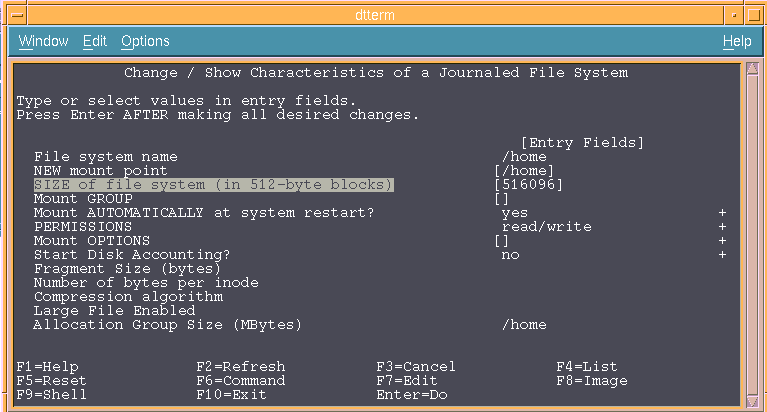
<p>By default, AIX is configured to only use part of the available disk space. In general, when you use the AIX SMIT (System Management Interface Tool) utility to install software, it will expand your filesystem size as needed. However, if you are going to use your home directory to transfer files back and forth, you will need to increase the disk space. The <code class="language-plaintext highlighter-rouge">smitty chfs</code> command lets you adjust the file system size. From a terminal window (or over a telnet session), run the command <code class="language-plaintext highlighter-rouge">su -c smitty chfs</code> and type your password when prompted. This will start the text (tty) mode version of SMIT. To resize the /home partition:</p>

<ol>
  <li>Choose Change / Show Characteristics of a Journaled File System and press Enter or Return.</li>
  <li>Move the cursor to <code class="language-plaintext highlighter-rouge">/home</code> and press enter.</li>
  <li>Move the cursor to the “SIZE of the file system” field and type in the size of the filesystem that you want to use. If you are thinking in kilobytes, then you should double the size you want because SMIT uses 512-byte blocks</li>
  <li>Press Enter or Return, and smit will try to expand the filesystem to the requested size.</li>
</ol>

<p><a href="/assets/unix/smitty-chfs.png" title="Changing filesystem size" data-lightbox="IMAGE-0">
    <img class="lightbox-image" src="/assets/unix/thumbs/smitty-chfs.jpg" alt="Changing filesystem size" />
</a></p>

<h2 id="install-precompiled-freeware">Install Precompiled Freeware</h2>

<p>Bull Freeware (now closed) provided a lot of precompiled binaries of open source software for AIX. Although the website is now shut down, you can access the repository from the Internet Archive. For AIX 4.2, you can use binaries from the <a href="https://web.archive.org/web/20040516022928/http://www.bullfreeware.com/download/aix41/">aix41</a> and <a href="https://web.archive.org/web/20040516023429/http://www.bullfreeware.com/download/contrib/">contrib</a> directories. You will need to download the software from a different computer because AIX 4.2 is not going to support a modern web browser. Here’s how to download and install a package from Bull Freeware:</p>

<ol>
  <li>Locate the <code class="language-plaintext highlighter-rouge">exe</code> file that you want and download it to your computer.</li>
  <li>Use ftp to transfer the file to the ThinkPad. Be sure to use binary mode and also passive mode.
    <pre> $ <strong>ftp tp850.home</strong>
 Name (tp850.home:bjepson): <strong>bjepson</strong>
 331 Password required for bjepson.
 Password: <strong>*******</strong>
 ftp&gt; <strong>binary</strong>
 200 Type set to I.
 ftp&gt; <strong>passive</strong>
 Passive mode on.
 ftp&gt; <strong>put unzip-5.32.0.0.exe</strong>
 local: unzip-5.32.0.0.exe remote: unzip-5.32.0.0.exe
 227 Entering Passive Mode (192,168,1,244,4,177)
 150 Opening data connection for unzip-5.32.0.0.exe.
 226 Transfer complete.
 278093 bytes sent in 0.16 secs (1.6705 MB/s)</pre>
  </li>
  <li>Open a shell on the ThinkPad either by opening a terminal in CDE or telnetting into the ThinkPad. Change directory (cd) to wherever you downloaded the file. Then, make the file executable with the chmod command, as in:
    <pre>chmod +x unzip-5.32.0.0.exe</pre>
  </li>
  <li>Run the file by prefixing it with the ./ (tells the shell to look for the file in the current directory), which will expand it into a <code class="language-plaintext highlighter-rouge">.bff</code> file:
    <pre> $ <strong>./unzip-5.32.0.0.exe</strong>
 UnZipSFX 5.32 of 3 November 1997, by Info-ZIP (Zip-Bugs@lists.wku.edu).
 inflating: unzip-5.32.0.0.bff</pre>
  </li>
</ol>

<p>You can use SMIT to install the <code class="language-plaintext highlighter-rouge">.bff</code> file. You will have more happiness if you move it into another directory and don’t let your <code class="language-plaintext highlighter-rouge">.bff</code> files clutter up your home directory. So you could make a downloads directory with <code class="language-plaintext highlighter-rouge">mkdir ~/Downloads</code> and move the <code class="language-plaintext highlighter-rouge">.bff</code> file there with:</p>

<div class="language-plaintext highlighter-rouge"><div class="highlight"><pre class="highlight"><code>mv unzip-5.32.0.0.exe ~/Downloads
</code></pre></div></div>

<p>After you move the file, <code class="language-plaintext highlighter-rouge">cd</code> to whereever you put it, remove any lingering <code class="language-plaintext highlighter-rouge">.toc</code> file (these will be created each time you install software with SMIT from that directory), and run SMIT’s <code class="language-plaintext highlighter-rouge">install_latest</code> command:</p>

<pre>$ <strong>cd ~/Downloads</strong>
$ <strong>su -c rm -f .toc</strong>
root's Password: <strong>********</strong>
$ <strong>su -c smitty install_latest</strong>
root's Password: <strong>********</strong>
</pre>

<p>Next:</p>

<ol>
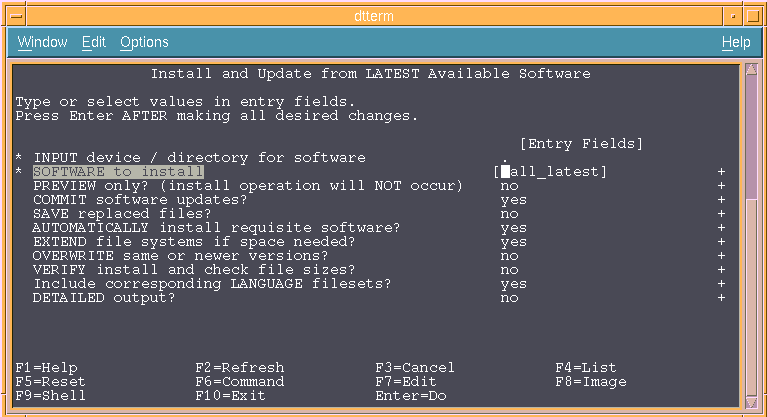
  <li>When prompted for an “INPUT device / directory for software”, type <code class="language-plaintext highlighter-rouge">.</code> (for the current directory) and press Enter.</li>
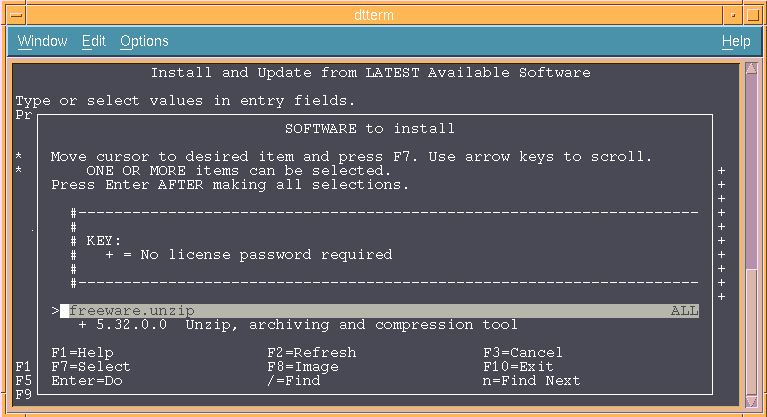
  <li>Make sure the cursor is on “SOFTWARE to install” and press the keystroke (listed at the bottom of the screen) for List, which is likely to be F4.</li>
  <li>Scroll down to the software you want to install, and use the keystroke for Select (usually F7) to select the software.</li>
  <li>Press Enter when you’ve selected all the software you want to install, then press Enter to run the installation (and press Enter again when prompted to confirm that you want to install the software.)</li>
</ol>

<div class="row">
  <div class="column-2up">
    <a href="/assets/unix/smitty-install-latest.png" title="SMIT install_latest screen" data-lightbox="IMAGE-1">
    <img class="lightbox-image" src="/assets/unix/thumbs/smitty-install-latest.jpg" alt="SMIT install_latest screen" />
    </a>
  </div>
  <div class="column-2up">
    <a href="/assets/unix/smitty-install-latest-select.png" title="Selecting software to install" data-lightbox="IMAGE-1">
      <img class="lightbox-image" src="/assets/unix/thumbs/smitty-install-latest-select.jpg" alt="Selecting software to install" />
    </a>
  </div>
</div>

<p>NOTE: you might run into some dependencies on system software that you haven’t yet installed, such as development tools. In this case, you will need to install software from the CD-ROM image. You can repeat the same steps just shown, but instead of typing <code class="language-plaintext highlighter-rouge">.</code> for the current directory, specify the CD-ROM drive. It will either be /dev/cd0 or /dev/cd1, so you may need to try each of these and then use the List command (F4).</p>

<p>If you get an eror that you can’t mount the device, it means you picked the wrong one. If you get a list of software instead, then press <code class="language-plaintext highlighter-rouge">/</code> on your keyboard to search the list of software. Select and install the software that you need and then try installing the <code class="language-plaintext highlighter-rouge">.bff</code> file again using the steps listed previously.</p>

<h2 id="to-change-your-shell">To Change Your Shell</h2>

<p>There are several (very relatively speaking) modern shells available from Bull Freeware, such as GNU Bash. If you want to change your shell, you should first edit the file <code class="language-plaintext highlighter-rouge">/etc/security/login.cfg</code> as root (using vi or another editor), and (carefully) add your shell (such as <code class="language-plaintext highlighter-rouge">/usr/local/bin/bash</code>) to the list. This is similar to adding the shell to <code class="language-plaintext highlighter-rouge">/etc/shells</code> on other systems, and if you don’t add the shell, your user might get locked out of ftp access. You can change your shell by editing the <code class="language-plaintext highlighter-rouge">/etc/passwd</code> file as root or running <code class="language-plaintext highlighter-rouge">smitty chuser</code> as root and following the prompts.</p>

<h2 id="remote-desktop-access">Remote Desktop Access</h2>

<p>Your best bet for remote access to the ThinkPad is via VNC, mainly because there are a lot of proprietary fonts on AIX. You can find a version of VNC in the Bull archive’s <a href="https://web.archive.org/web/20040516023429/http://www.bullfreeware.com/download/contrib/">contrib folder</a>. You can follow any of the many tutorials (such as <a href="https://home.cc.umanitoba.ca/~psgendb/local/public_html/remote/desktop/vnc/vncserver/vnc.setup.html">this one</a>) to set up VNC after you install it. I could not get vncserver from the Bull archive to work out of the box. It didn’t start any clients unless I added this line to the top of the <code class="language-plaintext highlighter-rouge">~/.vnc/xstartup</code> file after the shebang line:</p>

<div class="language-plaintext highlighter-rouge"><div class="highlight"><pre class="highlight"><code>export DISPLAY=`hostname`$DISPLAY
</code></pre></div></div>

<p>If that doesn’t work, check the hostname in your Xauthority and use that instead:</p>

<pre>$ <strong>xauth -f .Xauthority</strong>
Using authority file .Xauthority
xauth&gt; <strong>list</strong>
tp850.home:1  MIT-MAGIC-COOKIE-1  41ec8ceec5de8f8d5f878f76aa362ed8
tp850/unix:1  MIT-MAGIC-COOKIE-1  41ec8ceec5de8f8d5f878f76aa362ed8
xauth&gt;
</pre>

<p>Basically, the hostname in the <code class="language-plaintext highlighter-rouge">DISPLAY</code> variable needs to match whatever <code class="language-plaintext highlighter-rouge">.Xauthority</code> is using, and it doesn’t seem to do this correctly by default.</p>

<h2 id="helpful-resources">Helpful Resources</h2>

<p>Here are some sources that I consulted frequently while trying to make sense of how to work with this strange machine:</p>

<ul>
  <li><a href="https://groups.google.com/g/comp.unix.aix/">The comp.unix.aix newsgroup archives</a>. Most recent posts are spam, but go back a few decades, and it’s pure gold!</li>
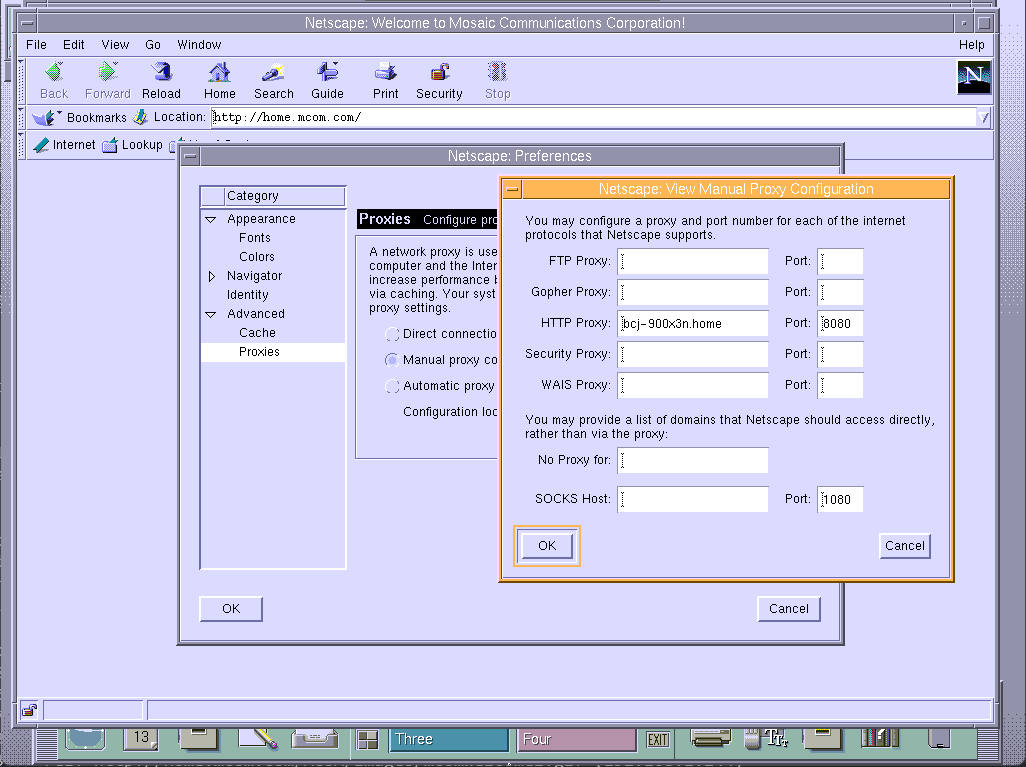
  <li><a href="http://home.mcom.com/archives/">jwz’s Mozilla archive</a>. You’ll probably need to use a vintage web proxy like <a href="https://github.com/tenox7/wrp">Web Rendering Proxy</a> or <a href="https://github.com/atauenis/webone">WebOne</a> to get anything to work well, though.</li>
  <li><a href="https://jack23247.github.io/blog/sysadm/installing-aix/">Installing AIX 4.3.3 on an IBM RS/6000 43P Model 100 (7248-100)</a>. It’s a different machine, but many of the basics are the same.</li>
  <li><a href="http://www.os2museum.com/wp/ibm-thinkpad-power-series-850/">IBM ThinkPad Power Series 850 at OS/2 Museum</a></li>
  <li><a href="http://ps-2.kev009.com/">ps-2.kev009.com</a>. Lots of good info on this and similar machines.</li>
</ul>

<p><a href="/assets/unix/tp850-netscape-proxy.png" title="Setting proxy server" data-lightbox="IMAGE-2">
    <img class="lightbox-image" src="/assets/unix/thumbs/tp850-netscape-proxy.jpg" alt="Setting proxy server" />
</a></p>]]></content><author><name>Brian Jepson</name></author><category term="unix" /><category term="rs6000" /><category term="thinkpad" /><category term="powerpc" /><category term="aix" /><category term="rs6000" /><summary type="html"><![CDATA[In an earlier post, I talked about how to install AIX 4.2 on an RS600 ThinkPad. Here are some customizations you might want to try out after you have the operating system installed.]]></summary><media:thumbnail xmlns:media="http://search.yahoo.com/mrss/" url="https://jepstone.net/assets/unix/ThinkPad-850.jpg" /><media:content medium="image" url="https://jepstone.net/assets/unix/ThinkPad-850.jpg" xmlns:media="http://search.yahoo.com/mrss/" /></entry><entry><title type="html">Setting up AIX on an RS6000 ThinkPad</title><link href="https://jepstone.net/unix/raspberrypi/2022/07/23/thinkpad-rs6000-aix.html" rel="alternate" type="text/html" title="Setting up AIX on an RS6000 ThinkPad" /><published>2022-07-23T16:00:00+00:00</published><updated>2022-07-23T16:00:00+00:00</updated><id>https://jepstone.net/unix/raspberrypi/2022/07/23/thinkpad-rs6000-aix</id><content type="html" xml:base="https://jepstone.net/unix/raspberrypi/2022/07/23/thinkpad-rs6000-aix.html"><![CDATA[<p><img src="/assets/unix/ThinkPad-850.jpg" alt="The IBM ThinkPad 850" /></p>

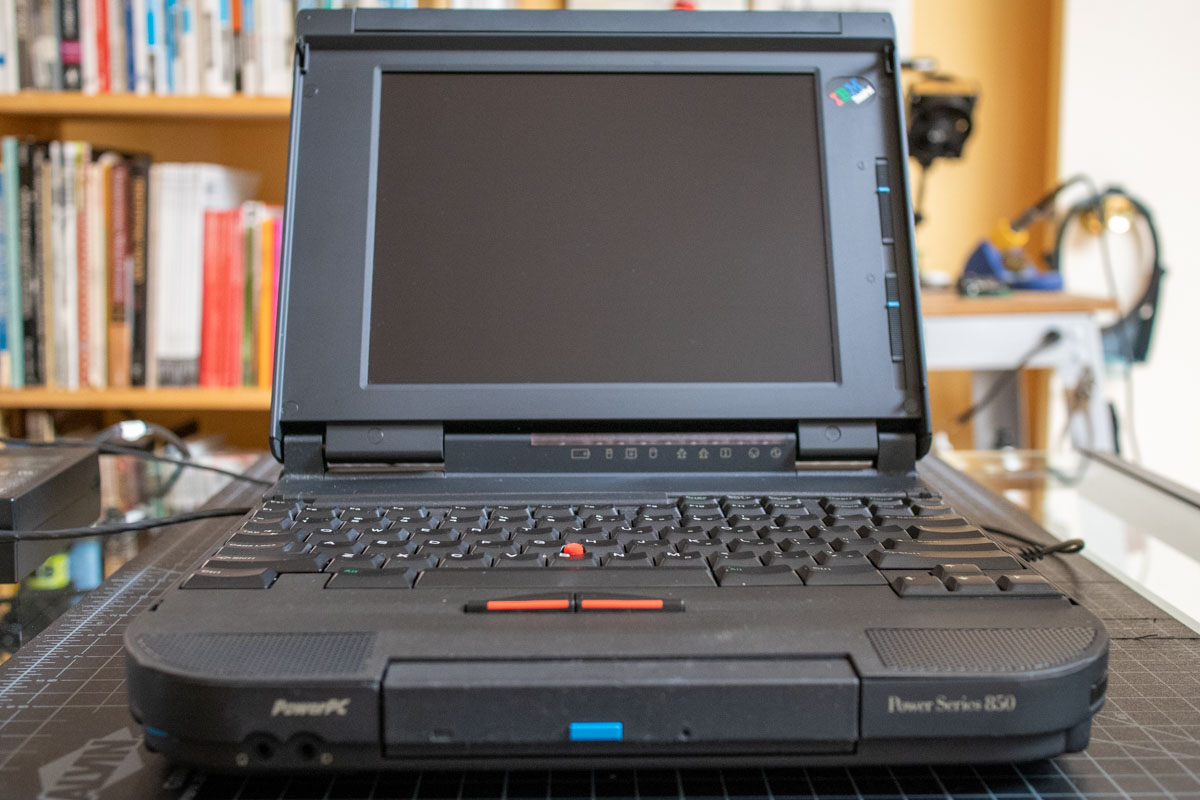
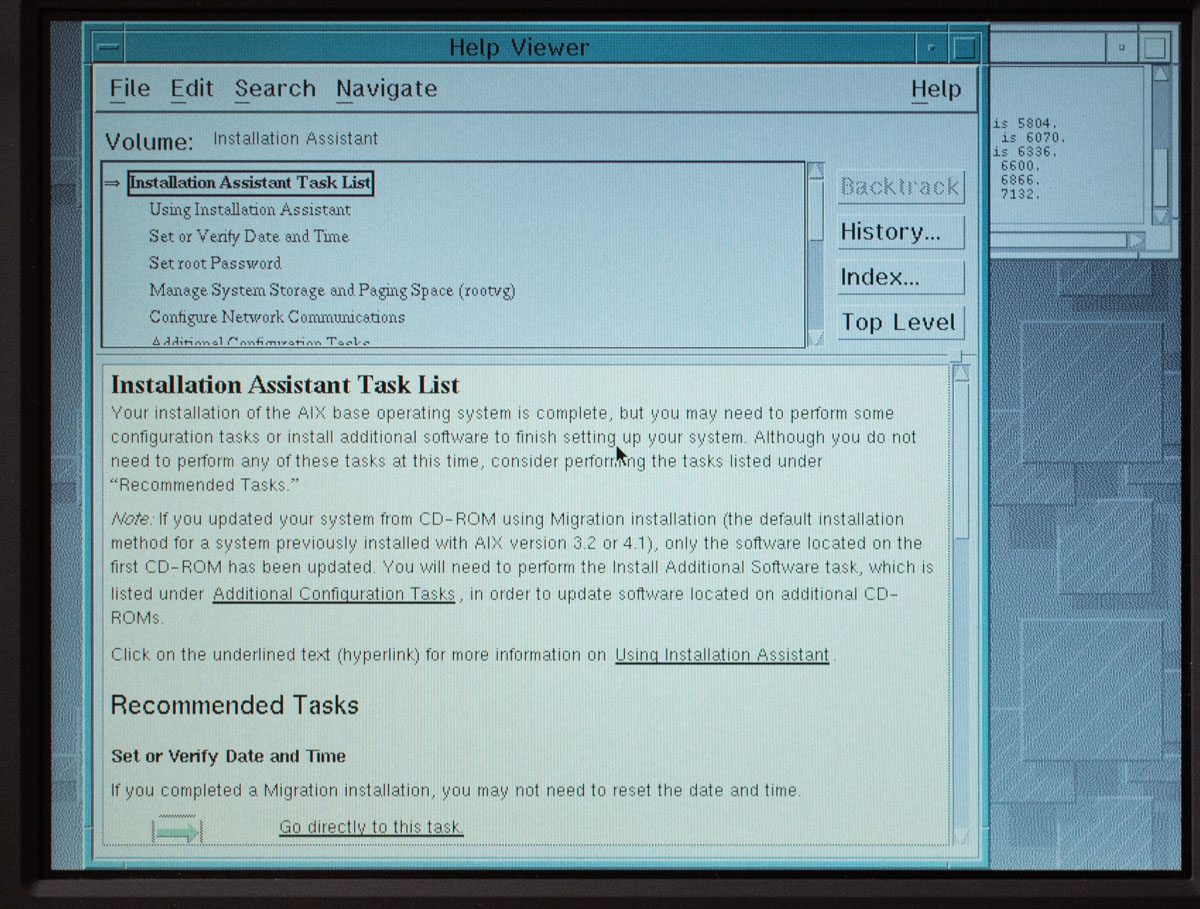
<p>The <a href="https://en.wikipedia.org/wiki/IBM_ThinkPad_Power_Series">IBM ThinkPad Power Series</a> is a PowerPC-based line of laptops designed to run Unix or Windows NT. Because it’s based on the PowerPC processor, you can’t just install an operating system intended for Intel-based computers.</p>

<p>I owned one of these back in the late 1990s, and I regret selling it. A friend of mine loaned me his ThinkPad 850 after retrieving the data he needed from it. With his data stored safely away, he gave me permission to reinstall the operating system. He had two hard drives for it, one that had Windows NT, and another with AIX 4.2. Unfortunately, both the AIX install discs and the password were lost to time, so there wasn’t an easy way to get it up and running again.</p>

<p>I figured I’d just look around the Internet for installation media and burn it to a CD-ROM. For whatever reason, that did not work. I came across a note somewhere (unfortunately I did not bookmark it) that indicated the CD-ROM needs to be written with 512-byte blocks. I already had a <a href="https://github.com/akuker/RASCSI">RASCSI</a> on its way for some other projects I’ve been working on. RASCSI allows you to emulate SCSI storage devices using a Raspberry Pi. It also allows you to specify the block size of the media when you mount it, so I didn’t have to worry about figuring out how to burn the disc in a way that would keep AIX happy.</p>

<p>There are several versions of the RASCSI hardware available. I went with the <a href="https://www.vintagecomputercenter.com/product/rascsi">assembled (Standard) version from Vintage Computer Center</a>. You can find documentation on <a href="https://github.com/akuker/RASCSI/wiki">setting up RASCSI on the project’s GitHub wiki</a>. Although there are preconfigured images available, I installed it over a vanilla Raspberry Pi OS installation and followed <a href="https://github.com/akuker/RASCSI/wiki/Setup-Instructions#Clone__build_the_RaSCSI_software">these instructions</a>.</p>

<h2 id="connecting-the-rascsi">Connecting the RASCSI</h2>

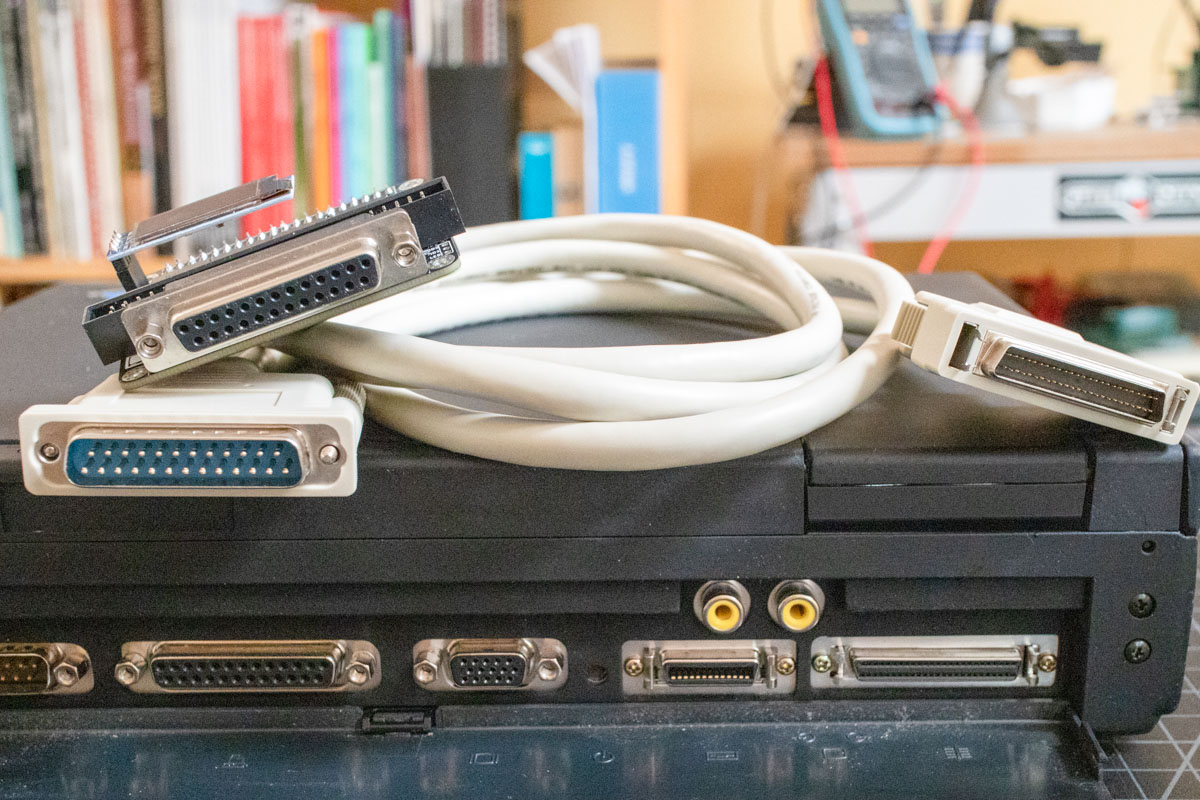
<p>Make sure both the RASCSI and ThinkPad are powered down for this step. You will need a very specific cable, as shown below (the RASCSI is sitting on top of the cable). I picked up a <a href="https://www.ebay.com/itm/234474810123">6ft SCSI II cable HPDB50 (Half Pitch DB50) Male to DB25 Male from darkmoonwholesale on eBay</a>. If you aren’t able to find that cable anymore, make sure it’s a SCSI II cable, that both ends are male, and that one is a DB25 and the other is half-pitch DB50.</p>

<p><a href="/assets/unix/SCSI-II-Cable.jpg" title="SCSI II cable" data-lightbox="IMAGE-0">
  <img class="lightbox-image" src="/assets/unix/thumbs/SCSI-II-Cable.jpg" alt="SCSI II cable" />
</a></p>

<p>First, make sure termination is enabled by moving switches 1 and 2 to the ON position. If you are using a RASCSI board older than 2.1, <a href="https://github.com/akuker/RASCSI/wiki/Connecting-the-RaSCSI#Termination">check the documentation</a>.</p>

<p>Make sure the RASCSI and ThinkPad are powered down, connect the cables, and power up the RASCSI, but don’t boot up the ThinkPad yet.</p>

<h2 id="booting-from-rascsi">Booting from RASCSI</h2>

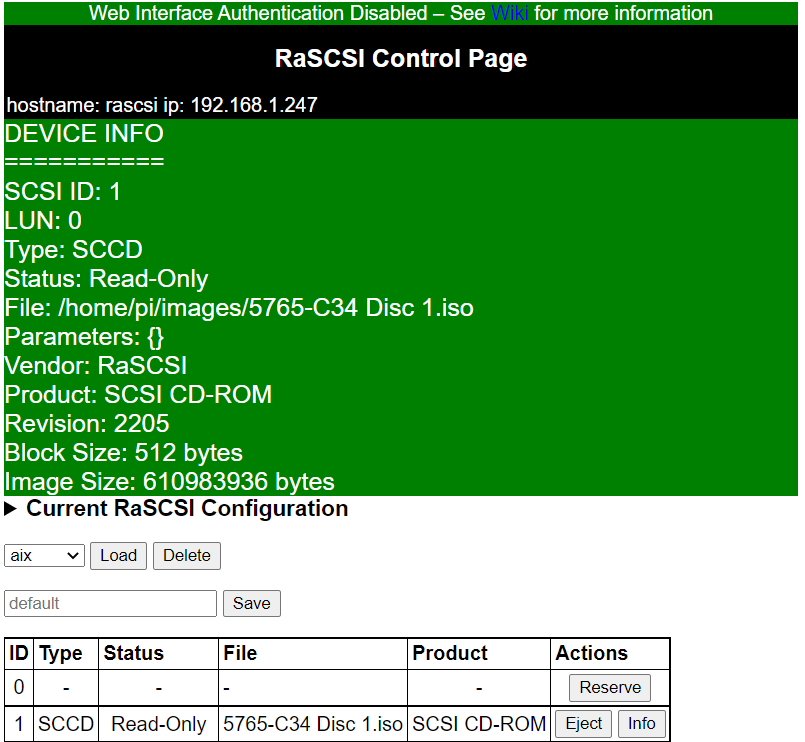
<p>I copied the AIX 4.2 installation ISO over to the RASCSI, and after sshing into the RASCSI, I ran <code class="language-plaintext highlighter-rouge">rasctl -b 512 -i 1 -c attach -f "5765-C34 Disc 1.iso"</code> to mount it (the RASCSI runs a full Raspberry Pi OS so you can ssh into it). Although I can mount images from the RASCSI web GUI, it did not allow me to specify a block size, so I used the command line. However, I found that if I saved my RASCSI configuration in the web GUI as ‘default’, it remembers the block size each time I boot up.</p>

<p><a href="/assets/unix/rascsi-control.png" title="CD-ROM image info in RASCSI web interface" data-lightbox="IMAGE-1">
  <img class="lightbox-image" src="/assets/unix/thumbs/rascsi-control.jpg" alt="CD-ROM image info in RASCSI web interface" />
</a></p>

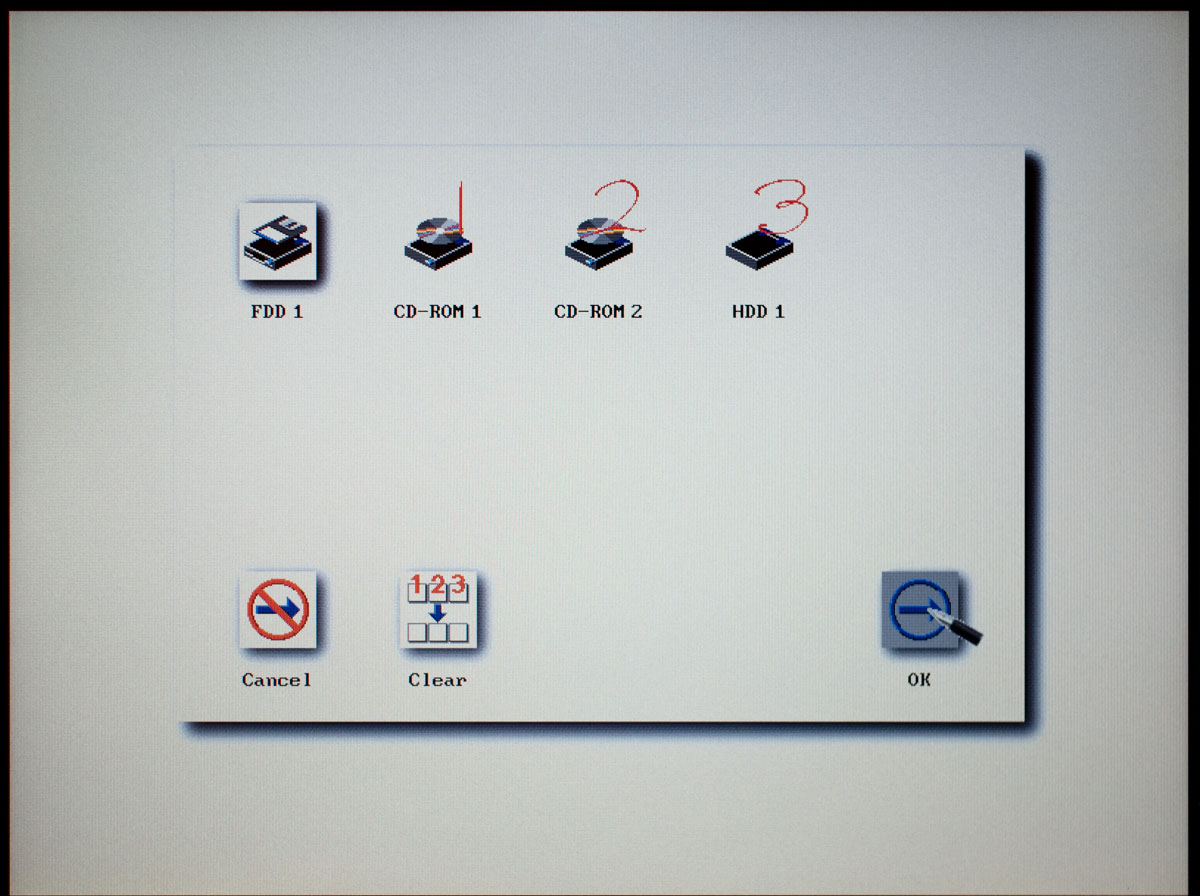
<p>You’ll need to start up the ThinkPad’s Easy-Setup configuration utility. Power up the ThinkPad, wait for the startup tune, press F1, and the Easy-Setup screen should appear. Click Start Up, and the boot device options should appear. Click Clear, and then click to choose your boot devices. You probably have an internal CD-ROM, so just choose both CD-ROMs and make sure they come before your hard drive (HDD 1). Click OK, and then click Exit back at the main Easy-Setup screen.</p>

<p><a href="/assets/unix/ThinkPad-850-startup.jpg" title="Configure startup options" data-lightbox="IMAGE-2">
  <img class="lightbox-image" src="/assets/unix/thumbs/ThinkPad-850-startup.jpg" alt="Configure startup options" />
</a></p>

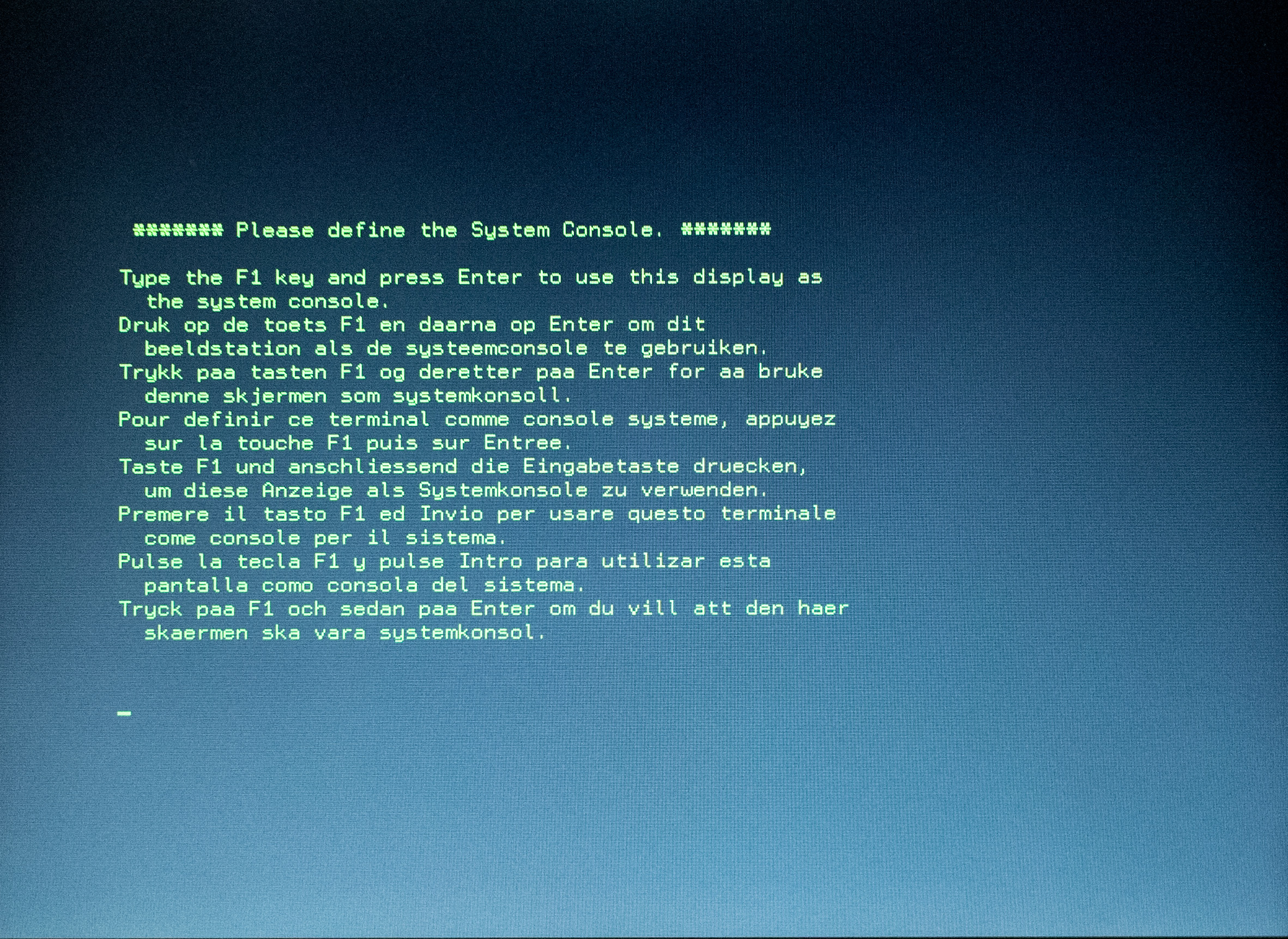
<p>The ThinkPad should now boot. If all goes well, it will boot from the CD-ROM image and you will be greeted with the first of many menus in the installation process:</p>

<p><a href="/assets/unix/aix-install-01-console.jpg" title="Define the system console" data-lightbox="IMAGE-3">
  <img class="lightbox-image" src="/assets/unix/thumbs/aix-install-01-console.jpg" alt="Define the system console" />
</a></p>

<h2 id="installing-aix">Installing AIX</h2>

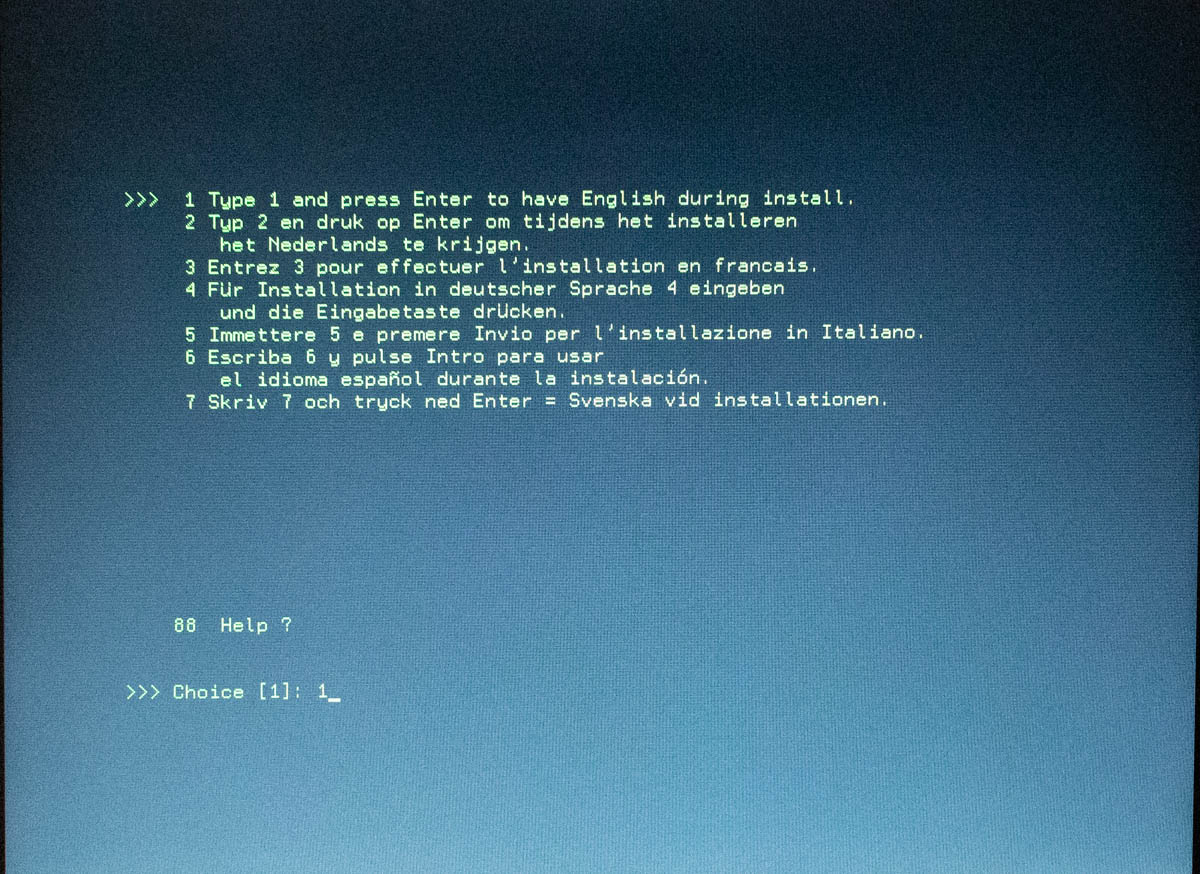
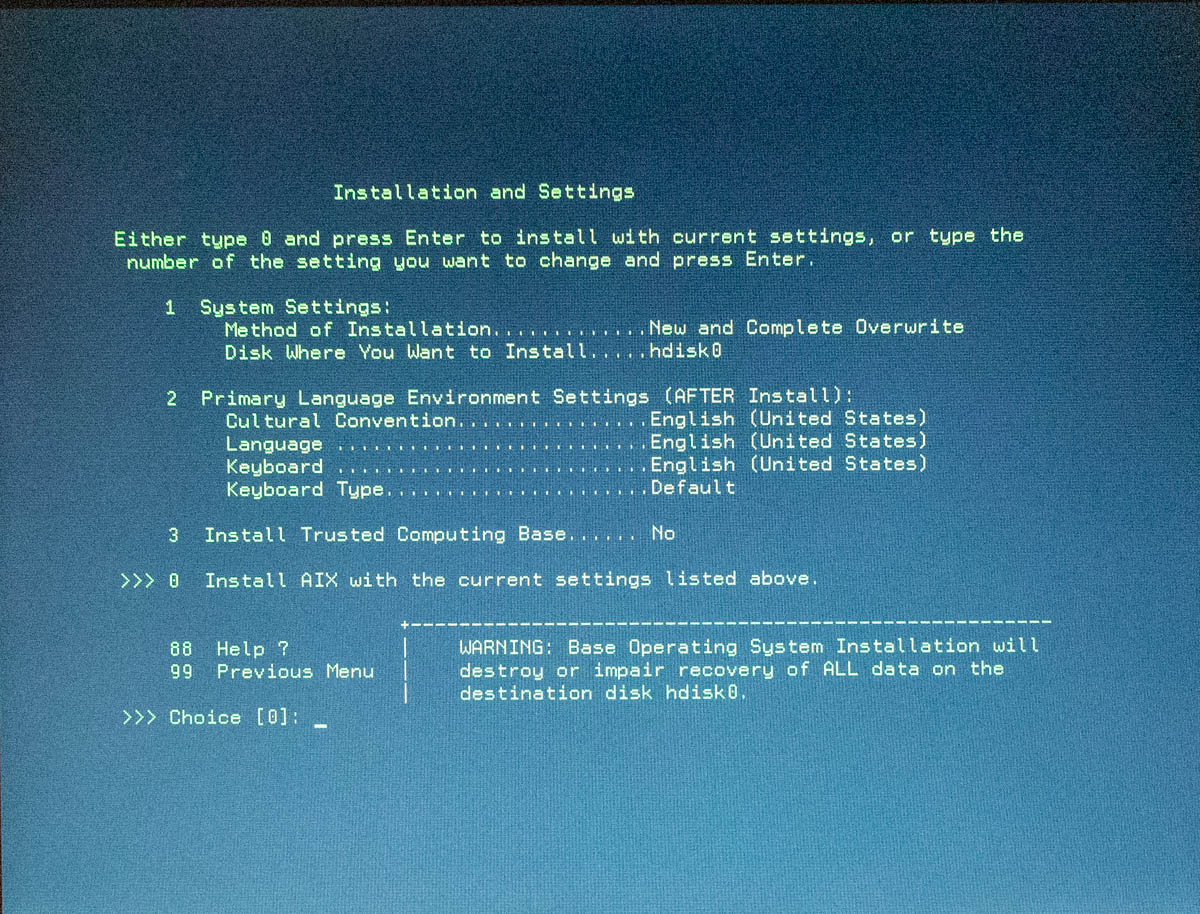
<p>The first part of the installation takes place in text mode. You’ll need to choose which language to use during installation, and then specify options, such the hard drive to install AIX on and the language/locale of the installed operating system.</p>

<div class="row">
  <div class="column-2up">
    <a href="/assets/unix/aix-install-02-language.jpg" title="Choose the installation language" data-lightbox="IMAGE-4">
    <img class="lightbox-image" src="/assets/unix/thumbs/aix-install-02-language.jpg" alt="Choose the installation language" />
    </a>
  </div>
  <div class="column-2up">
    <a href="/assets/unix/aix-install-03-options.jpg" title="Choose installation options" data-lightbox="IMAGE-4">
      <img class="lightbox-image" src="/assets/unix/thumbs/aix-install-03-options.jpg" alt="Choose installation options" />
    </a>
  </div>
</div>

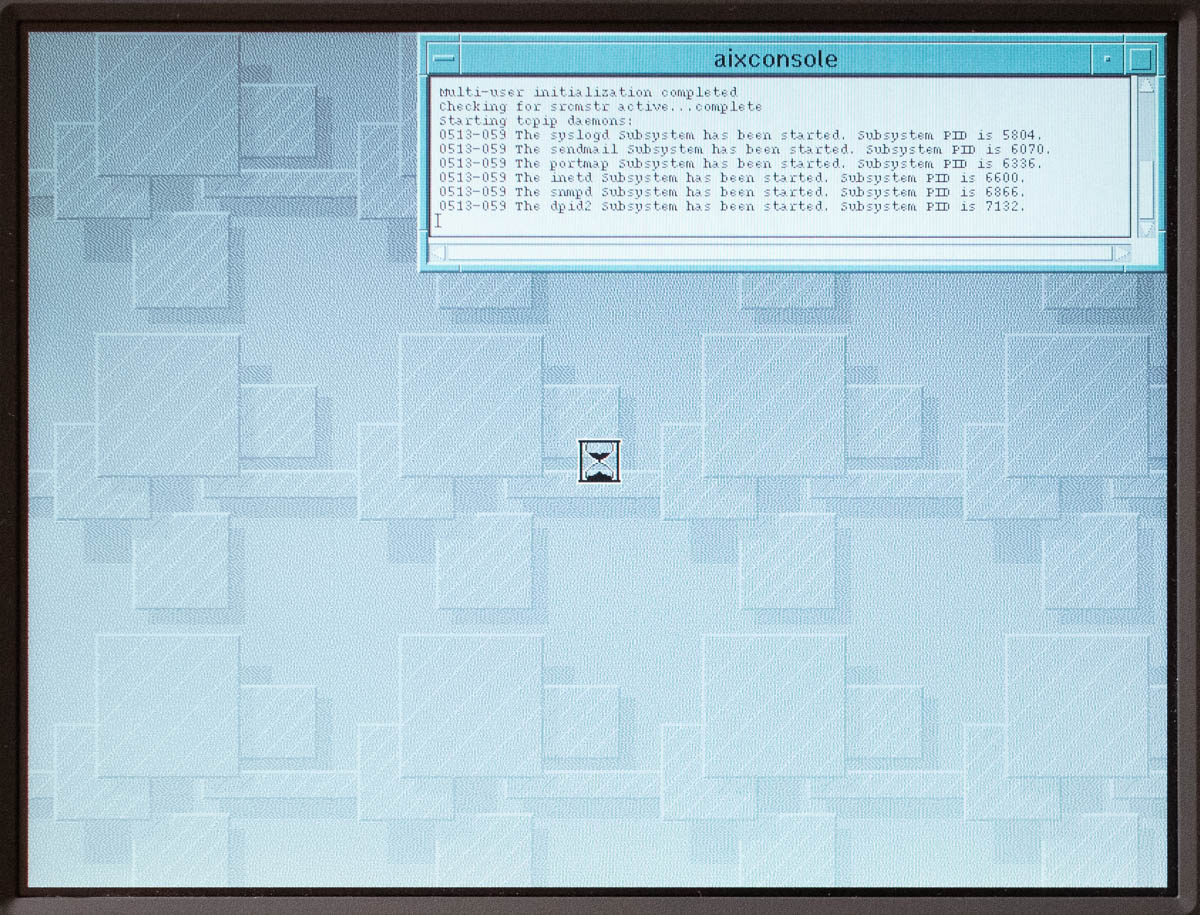
<p>Follow the on-screen instructions. After the text-mode installation is completed, you will reboot into the graphical-mode installation. The console will appear first and will show you the startup progress. When the system is up and running, the Installation Assistant appears.</p>

<div class="row">
  <div class="column-2up">
    <a href="/assets/unix/aix-install-04-console.jpg" title="AIX console showing boot messages" data-lightbox="IMAGE-5">
    <img class="lightbox-image" src="/assets/unix/thumbs/aix-install-04-console.jpg" alt="AIX console showing boot messages" />
    </a>
  </div>
  <div class="column-2up">
    <a href="/assets/unix/aix-install-05-assistant.jpg" title="AIX installation assistant" data-lightbox="IMAGE-5">
      <img class="lightbox-image" src="/assets/unix/thumbs/aix-install-05-assistant.jpg" alt="AIX installation assistant" />
    </a>
  </div>
</div>

<p>You should check over each task, read the on-screen documentation, and decide which installation tasks to perform. Here’s what I did:</p>

<ol>
  <li>Verified and set the system date and time. I’m not sure how Y2K compliant AIX 4.2 is, but it did allow me to set the date in 2022!</li>
  <li>Set the root password.</li>
  <li>Configure network communications. This will only work if you have a supported PCMCIA network adapter such as the IBM Ethernet I or Ethernet II (<a href="http://www.ibmfiles.com/pages/tp850.htm">see ibmfiles.com for a list of supported adapters and some part numbers</a>). The process is relatively straightforward except for one confusing bit at the end:
    <ol>
      <li>Click Configure Network Communications in the assistant.</li>
      <li>Scroll down to “Go to first subtask, Configure TCP/IP”</li>
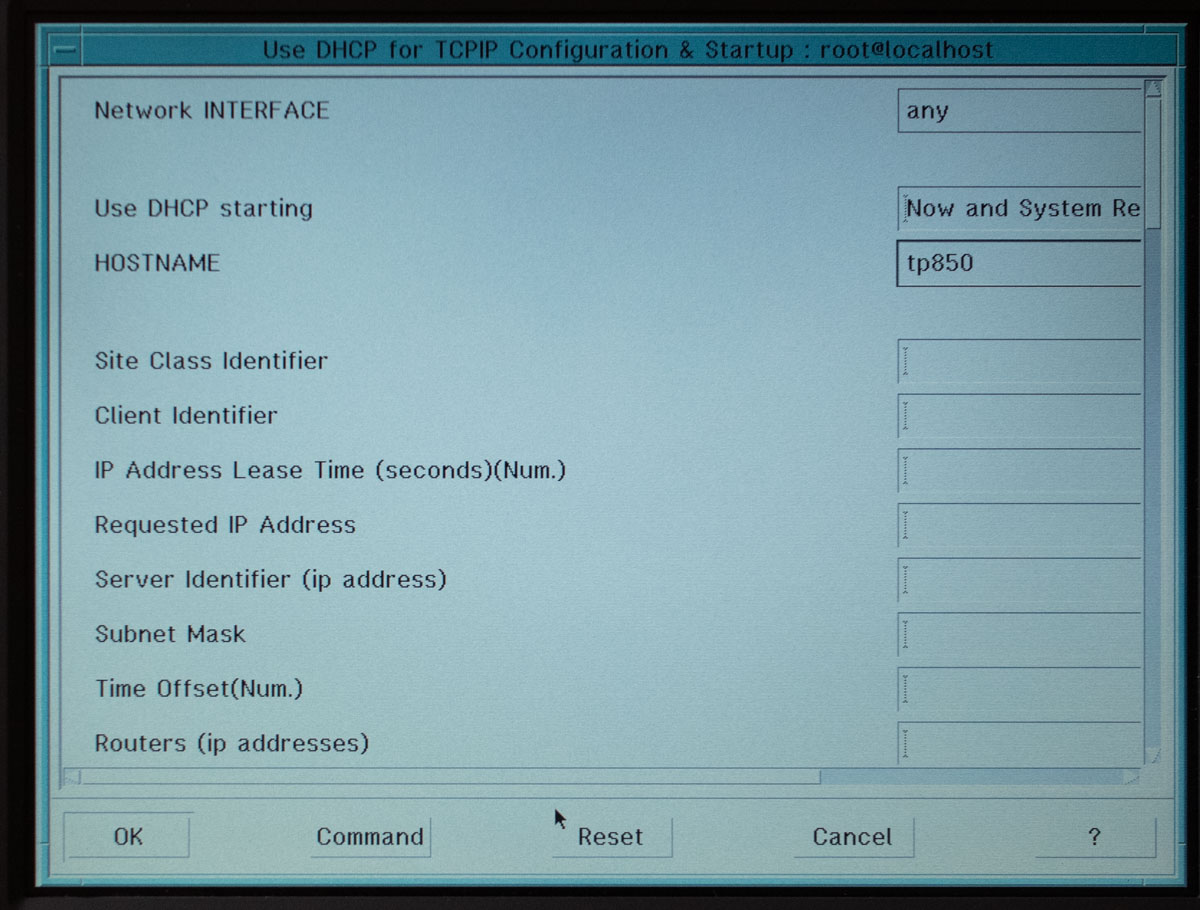
      <li>Click the LAN icon and wait for the SMIT (System Management Interface Tool) utility to open. Click Use DHCP for TCPIP Configuration &amp; Startup.</li>
      <li>When prompted, choose “any” or “en0” for the network interface.</li>
      <li>On the screen that appears, make sure that “Use DHCP starting” is set to “Now and System Restart” and choose a hostname for your ThinkPad.</li>
      <li>Click OK. A new window will open and SMIT will perform the configuration.</li>
      <li>When the configuration is done, click the Done button. This will take you back to the DHCP configuration dialog. Although it seems counterintuitive, you need to click Cancel here. If you click OK again, it will just re-run the configuration again.<br /><br /></li>
    </ol>

    <p><a href="/assets/unix/aix-install-06-dhcp.jpg" title="Configuring DHCP" data-lightbox="IMAGE-6">
   <img class="lightbox-image" src="/assets/unix/thumbs/aix-install-06-dhcp.jpg" alt="Configuring DHCP" />
 </a></p>
  </li>
  <li>Install Additional Software. The Personal Productivity bundle should include most of what you need, but later on you might find that you need more.
    <ol>
      <li>Click the Install Additional Software task, and then choose the third subtask, Install a Bundle of Software.</li>
      <li>Click the icon listed in the instructions (“Click the picture and wait for the Visual System Management graphical application”.)</li>
      <li>When a dial appears asking which software source and which bundle of software, choose your CD-ROM (you may need to try both cd0 and cd1 to see which one corresponds to the RASCSI CD-ROM). Choose Personal Productivity, and click Install/Update.</li>
      <li>When finished, click Done in the window that appeared after you clicked Install/Update, and then click Exit when you go back to the previous window.</li>
    </ol>
  </li>
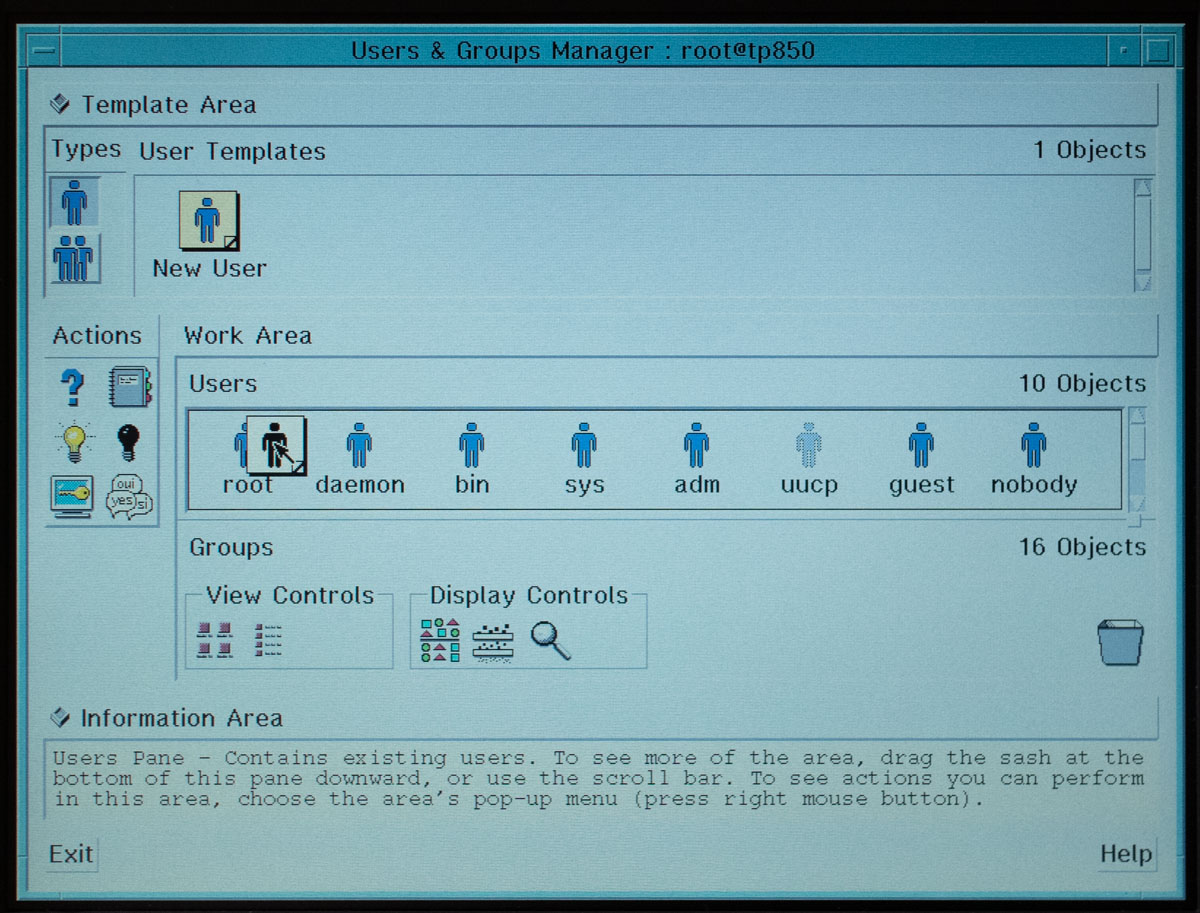
  <li>Create Users. Click the task, and then click the icon that is shown in the instructions.
    <ol>
      <li>A window will appear where you can drag the New User icon to the “Users” work area. I could not get this to work with the left or right mouse button on the ThinkPad. But when I clicked and dragged with both buttons, that worked for some reason. Drag New User to the Users area.<br /><br /></li>
    </ol>

    <p><a href="/assets/unix/aix-install-07-newuser.jpg" title="Creating a new user" data-lightbox="IMAGE-7">
   <img class="lightbox-image" src="/assets/unix/thumbs/aix-install-07-newuser.jpg" alt="Creating a new user" />
 </a></p>

    <ol>
      <li>Specify the user name and leave everything else untouched, then click OK.</li>
      <li>After the user is created, click Done, and then click Cancel when you return to the Add a User screen.</li>
    </ol>
  </li>
</ol>

<p>At this point, I exited the installation assistant. It automatically prompted me to increase the paging space, so I followed its instructions. It then rebooted into the Common Desktop Environment (CDE) login window.</p>

<h2 id="first-login">First Login</h2>

<p>The user account you created earlier won’t have a password set yet, but you can do one of two things to remedy that:</p>

<ol>
  <li>Log in to CDE as root with the root password you specified during setup. Open a Terminal window (click the arrow above the icon for the Text Editor and choose Terminal), and type <code class="language-plaintext highlighter-rouge">passwd &lt;your user name&gt;</code> and press Enter/Return to create a temporary password for the user you created earlier.</li>
  <li>From another computer, telnet to your ThinkPad using the hostname you specified during the DHCP setup. Log in as root, and run the command <code class="language-plaintext highlighter-rouge">passwd &lt;your user name&gt;</code> to set a password.<br /><br />In most network configurations, your router should be able to resolve that hostname. You may need to append a local domain to the hostname, such as <code class="language-plaintext highlighter-rouge">.local</code>, <code class="language-plaintext highlighter-rouge">.home</code>, or whatever domain your local network uses.<br /><br />If you need to install a telnet client on a Windows machine, you can install it with the Turn Windows Features On or Off control panel. On Linux, you can try using your package manager to install telnet (for example, <code class="language-plaintext highlighter-rouge">sudo apt install telnet</code>). On macOS, you can install it using <a href="https://brew.sh/">Homebrew</a>.</li>
</ol>

<p>You’ll be prompted to change your password when you log in as this user for the first time.</p>

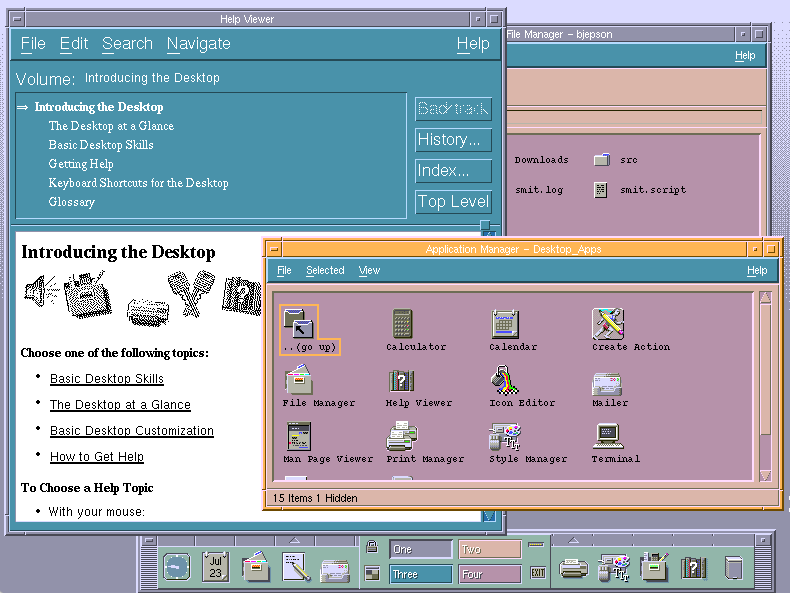
<p>Once you’ve done that, you can log in to CDE as the user you created and begin using AIX!</p>

<p><a href="/assets/unix/CDE-desktop.png" title="The CDE desktop" data-lightbox="IMAGE-8">
    <img class="lightbox-image" src="/assets/unix/thumbs/CDE-desktop.png" alt="The CDE desktop" />
</a></p>

<h2 id="next-steps">Next Steps</h2>

<p>Check out the followup post, <a href="/unix/rs6000/2022/07/24/thinkpad-850-customization.html">Customizing AIX on an RS6000 ThinkPad</a>.</p>]]></content><author><name>Brian Jepson</name></author><category term="unix" /><category term="raspberrypi" /><category term="thinkpad" /><category term="powerpc" /><category term="aix" /><category term="rs6000" /><category term="raspberry-pi" /><summary type="html"><![CDATA[I owned an RS6000 ThinkPad many years ago, and I regret selling it. I got my hands on one again, and with a bit of effort, was able to get AIX working on it!]]></summary><media:thumbnail xmlns:media="http://search.yahoo.com/mrss/" url="https://jepstone.net/assets/unix/ThinkPad-850.jpg" /><media:content medium="image" url="https://jepstone.net/assets/unix/ThinkPad-850.jpg" xmlns:media="http://search.yahoo.com/mrss/" /></entry><entry><title type="html">Build a Raspberry Pi-powered MIDI Synth</title><link href="https://jepstone.net/raspberrypi/midi/2022/06/11/midi-raspberry-pi-atari.html" rel="alternate" type="text/html" title="Build a Raspberry Pi-powered MIDI Synth" /><published>2022-06-11T16:00:00+00:00</published><updated>2022-06-11T16:00:00+00:00</updated><id>https://jepstone.net/raspberrypi/midi/2022/06/11/midi-raspberry-pi-atari</id><content type="html" xml:base="https://jepstone.net/raspberrypi/midi/2022/06/11/midi-raspberry-pi-atari.html"><![CDATA[<p><img src="/assets/raspberrypi/Raspberry-Pi-MIDI-Synth.jpg" alt="Raspberry Pi + clumsyMIDI playing a tune" /></p>

<p>The Roland MT-32 Multi-Timbre Sound Module had 128 unique sounds and you could play up to nine parts at once (8 melodic instruments plus 1 rhythm instrument). Although not originally designed with gamers in mind, it was adopted by game developers (such as Sierra On-Line), and as a result, it opened up a wide world of musical experiences for computers in the late 1980s and well into the following decade.</p>

<p>For what it offered, the MT-32 was somewhat affordable (around $700 when in 1987), but a little pricey for many gamers. Roland eventually released less-expensive versions aimed at gamers, but eventually, a more open standard (General MIDI) emerged that became a core part of the video gaming landscape. As sound cards began to implement MIDI functionality, there was no need for a separate synth module.</p>

<p>In a time when the audio coming out of your computer wasn’t all that impressive, a MIDI synthesizer could completely change your experience of a game. The Atari ST included MIDI ports, but no built-in synthesizer, and its Yamaha YM2149 sound chip was not exactly designed for high fidelity sound. So, if you want to use one of the many great MIDI sequencers for Atari ST, or play a MIDI-compatible game the way it was meant to be experienced, you’ll need a synthesizer.</p>

<p><a href="https://github.com/dwhinham/mt32-pi">The mt32-pi project</a> turns a Raspberry Pi into a MIDI synthesizer that can emulate the MT-32 and other synthesizers, and also supports General MIDI. It’s referred to as a <em>baremetal synthesizer</em> because the mt32-pi software runs directly on the Raspberry Pi hardware, without an operating system (in other words, it runs directly on the metal of the underlying computing hardware).</p>

<h2 id="the-clumsymidi-expansion-board">The clumsyMIDI Expansion Board</h2>

<p>While the mt32-pi project provides the software, and a Raspberry Pi (Raspberry Pi 3, 4, or Zero 2 W) provides the underlying hardware, you still need some additional hardware to make it all work. Raspberry Pi Hats are expansion modules that add hardware capabilities to a Raspberry Pi. I wasn’t able to find a ready-made MIDI Hat for sale, though you can occasionally find them in stock, such as <a href="https://www.tindie.com/products/retrofletch/roland-mt-32-emulator-pi-hat-mt32-pi-midi-mt32/">this Pi Hat available on Tindie</a>. However, there is one you can build yourself, <a href="https://github.com/gmcn42/clumsyMIDI">the clumsyMIDI</a>.</p>

<p>To build a clumsyMIDI, you need basic soldering skills. The clumsyMIDI requires only through-hole soldering, so you won’t have to do any surface mount work. You will need a little patience, though, because you will have to order the boards from a PCB manufacturer. The designers of clumsyMIDI <a href="https://github.com/gmcn42/clumsyMIDI#how-to-get-the-pcb">offer instructions on obtaining the PCB</a>, and they provide a link there to order the PCB from PCBWAY. I placed an order for five boards, which cost $US 12 shipped. It took about 16 days from placing the order to receiving the boards.</p>

<p><a href="/assets/raspberrypi/clumsyMIDI-00-parts.jpg" title="clumsyMIDI PCB and parts" data-lightbox="IMAGE-0">
  <img class="lightbox-image" src="/assets/raspberrypi/clumsyMIDI-00-parts_thumb.jpg" alt="clumsyMIDI PCB and parts" />
</a></p>

<p>In addition to the board, you’ll need some commonly-available electronic components. Check out the <a href="https://github.com/gmcn42/clumsyMIDI/blob/main/pdf/clumsyMIDI-BOM.pdf">bill of materials (BoM)</a> in the clumsyMIDI github repository for exact part numbers. Here’s what I went with:</p>

<ul>
  <li>One <a href="https://amzn.to/3mGzFrv">PCM5102 I2S Digital-to-Analog converter</a>. You want this for the highest possible quality audio output.</li>
  <li>One <a href="https://amzn.to/3O8736e">I2C SSD1306 OLED Display</a>. mt32-pi will use this to display useful information, including an EQ-style display of  each MIDI channel.</li>
  <li>One each 470 uF and 100 uF electrolytic capacitors. You could buy them individually or in an assortment such as the <a href="https://amzn.to/3zvX1I7">E-Projects Radial Electrolytic Capacitor Kit</a>. I haven’t bought that exact kit, but I have bought a capacitor kit from E-Projects in the past.</li>
  <li>Four <a href="https://www.digikey.com/short/p9tmtmnp">0.1 uF ceramic capacitors</a>. Listed as 100 nF in the BoM (100 nF = 0.1 uF).</li>
  <li>One <a href="https://www.digikey.com/short/0mr8v9t3">1N4148 diode</a>.</li>
  <li>Two <a href="https://www.digikey.com/short/wth500dp">MIDI jacks</a>.</li>
  <li>Assorted male and female breakaway headers (2.54mm pin spacing). These are pretty common, but you can’t go wrong with these <a href="https://www.adafruit.com/product/598">female</a> and <a href="https://www.adafruit.com/product/392">male</a> headers from Adafruit. The clumsyMIDI BoM specifies a Raspberry Pi GPIO socket, but I just used two rows of 20 female header pins.</li>
  <li>Five 220 Ω (red-red-brown) and one 1 kΩ (brown-black-red) resistor. These are extremely common resistor values. An assortment of 1/4 watt resistors such as <a href="https://amzn.to/3QgCJIs">this one from E-Projects</a> should give you everything you need.</li>
  <li>One <a href="https://www.digikey.com/short/wftvqcjr">74HCT14 hex inverter Schmitt trigger</a> and <a href="https://www.digikey.com/short/z9zz9jf2">a 14-pin socket for it</a>.</li>
  <li>One <a href="https://www.digikey.com/short/40dt5zw9">H11L1M optocoupler</a> and <a href="https://www.digikey.com/short/wjbhw4tw">a 6-pin socket for it</a>.</li>
</ul>

<p><em>When you buy through a link on this site, I may earn a commission.</em></p>

<h2 id="build-it">Build It</h2>

<p><a href="/assets/raspberrypi/clumsyMIDI-02-solder.jpg" title="Soldering the clumsyMIDI" data-lightbox="IMAGE-1">
  <img class="lightbox-image" src="/assets/raspberrypi/clumsyMIDI-02-solder_thumb.jpg" alt="Soldering the clumsyMIDI" />
</a></p>

<p>The soldering for this board is pretty simple. I started with the lowest profile components (the resistors and diode), and worked my way up. There were some components, such as the integrated circuit sockets, where it was more convenient to flip the board over onto a work surface with the components in place, rather than trying to hold them in place while the board was in my vise. Here’s the PCB with all but one resistor placed:</p>

<p><a href="/assets/raspberrypi/clumsyMIDI-01-low-profile-parts.jpg" title="PCB with all but one resistor placed" data-lightbox="IMAGE-2">
  <img class="lightbox-image" src="/assets/raspberrypi/clumsyMIDI-01-low-profile-parts_thumb.jpg" alt="PCB with all but one resistor placed" />
</a></p>

<p>Before you solder on the PCM5102, turn it over and make sure the solder bridges are configured as shown in the following image. If they are not, resolder them to match the image. See the <a href="https://github.com/gmcn42/clumsyMIDI#an-important-note-on-the-dac-board-solder-bridges">clumsyMIDI documentation</a> for more details.</p>

<p><a href="/assets/raspberrypi/clumsyMIDI-03-PCM5102.jpg" title="PCM5102 solder bridge configuration" data-lightbox="IMAGE-3">
  <img class="lightbox-image" src="/assets/raspberrypi/clumsyMIDI-03-PCM5102_thumb.jpg" alt="PCM5102 solder bridge configuration" />
</a></p>

<p>After you’ve soldered on all the components, you’ll need to solder on the GPIO header. I placed two rows of 20 female breakaway headers on a Raspberry Pi and used that as a jig for soldering the headers onto the clumsyMIDI board:</p>

<p><a href="/assets/raspberrypi/clumsyMIDI-04-GPIO-headers.jpg" title="Setting up the GPIO header pins" data-lightbox="IMAGE-4">
  <img class="lightbox-image" src="/assets/raspberrypi/clumsyMIDI-04-GPIO-headers_thumb.jpg" alt="Setting up the GPIO header pins" />
</a></p>

<p>You will want to put some insulating material between the clumsyMIDI and the Raspberry Pi’s HDMI port, as shown in this picture of the finished board:</p>

<p><a href="/assets/raspberrypi/Raspberry-Pi-MIDI-Synth.jpg" title="The assembled clumsyMIDI board" data-lightbox="IMAGE-5">
  <img class="lightbox-image" src="/assets/raspberrypi/Raspberry-Pi-MIDI-Synth_thumb.jpg" alt="The assembled clumsyMIDI board" />
</a></p>

<p>Now that you’ve built the clumsyMIDI board, head on over to the <a href="https://github.com/dwhinham/mt32-pi/wiki">mt32-pi wiki</a> and follow the instructions for installation, paying particular attention to <a href="https://github.com/dwhinham/mt32-pi/wiki/Configuration-file">the configuration file</a>, <a href="https://github.com/dwhinham/mt32-pi/wiki/SD-card-preparation">SD card preparation</a>, and the <a href="https://github.com/dwhinham/mt32-pi/wiki/Recommended-SoundFonts">recommended SoundFonts</a>, which implement General MIDI instruments and work well with a lot of games. If you decide to go down the road of emulating the original MT-32, you’ll need to <a href="https://github.com/dwhinham/mt32-pi/wiki/MT-32-synthesis">locate and install the ROMs from a real MT-32</a>, which is complicated, both technically and legally.</p>

<p>For my mt32-pi, I made the following changes to the default configuration:</p>

<ul>
  <li>Changed <code class="language-plaintext highlighter-rouge">default_synth = mt32</code> to <code class="language-plaintext highlighter-rouge">default_synth = soundfont</code>. There’s one SoundFont installed by default, and you can put more in the soundfonts/ directory. You can change which SoundFont to use by changing the <code class="language-plaintext highlighter-rouge">soundfont = 0</code> setting. The SoundFonts are numbered sequentially from 0 and in alphabetical order of their filenames.</li>
  <li>Changed <code class="language-plaintext highlighter-rouge">usb = on</code> to <code class="language-plaintext highlighter-rouge">usb = off</code> because I wasn’t using any USB devices.</li>
  <li>Changed <code class="language-plaintext highlighter-rouge">output_device = pwm</code> to <code class="language-plaintext highlighter-rouge">output_device = i2s</code> to use the DAC for audio output.</li>
  <li>Changed <code class="language-plaintext highlighter-rouge">i2c_dac_init = none</code>  to <code class="language-plaintext highlighter-rouge">i2c_dac_init = pcm51xx</code> to use the DAC that I installed.</li>
  <li>In the <code class="language-plaintext highlighter-rouge">[lcd]</code> section, I changed <code class="language-plaintext highlighter-rouge">type = none</code> to <code class="language-plaintext highlighter-rouge">type = ssd1306_i2c</code>.</li>
</ul>

<p>You’ll just need to connect your Atari ST’s MIDI out to the clumsyMIDI’s MIDI in, power them both up, and if all is well, you should be able to use MIDI-enabled software. A short MIDI cable, <a href="https://amzn.to/3Qfo7sX">such as the ones in this 2-pack</a>, is all you need to make the connection.</p>

<p>Here’s a short clip of Ultima IV on an Atari ST, first with music from the Atari ST sound chip. It doesn’t sound all that bad, at least not until I bring in the MIDI audio. While both are playing, you can hear a lot of dissonance. At the end of the clip, I let the MIDI audio play (in all its glory). It’s quite an improvement over the original Atari ST audio!</p>

<p>
<video controls="">
    <source src="/assets/raspberrypi/Ultima-IV-Atari-ST-MIDI-Demo.mp4" type="video/mp4" />
</video>
</p>

<p>You can do more than just play games, too. The mt32-pi is a capable synthesizer that you can use with MIDI sequencers such as Cubase, Notator, and others. It can be a little tricky to obtain working versions of old commercial software (and for Notator, you need a copyright protection dongle). Sweet Sixteen is an excellent MIDI sequencer, and it has been made available as freeware. You can learn more and <a href="http://www.ronimusic.com/s16_atari.htm">download it here</a>. You can learn a bit more about Sweet Sixteen in these articles from <a href="http://www.muzines.co.uk/articles/roni-music-sweet-16/7678">Music Technology via mu:zines</a> and <a href="https://www.soundonsound.com/reviews/roni-music-sequencing-software-atari-st-tt-falcon">Sound On Sound</a>.</p>

<h2 id="see-also">See Also</h2>

<ul>
  <li><a href="https://en.wikipedia.org/wiki/List_of_MT-32-compatible_computer_games">List of MT-32-compatible computer games</a></li>
  <li><a href="https://www.mobygames.com/attribute/sheet/attributeId,47/p,2/">DOS games with General MIDI support</a></li>
  <li><a href="https://www.atari-forum.com/viewtopic.php?f=3&amp;t=21473">Atari Forum discussion about ST games with MIDI sound</a></li>
  <li><a href="http://www.atarimania.com/utility-atari-st-sweet-sixteen_27812.html">Scans of Sweet Sixteen documentation</a></li>
</ul>]]></content><author><name>Brian Jepson</name></author><category term="raspberrypi" /><category term="midi" /><category term="atari-st" /><category term="midi" /><category term="raspberry-pi" /><summary type="html"><![CDATA[Open a whole new world of MIDI music for your retrocomputing joy]]></summary><media:thumbnail xmlns:media="http://search.yahoo.com/mrss/" url="https://jepstone.net/assets/raspberrypi/Raspberry-Pi-MIDI-Synth.jpg" /><media:content medium="image" url="https://jepstone.net/assets/raspberrypi/Raspberry-Pi-MIDI-Synth.jpg" xmlns:media="http://search.yahoo.com/mrss/" /></entry><entry><title type="html">A Tale of Three Atari ST Power Supplies</title><link href="https://jepstone.net/atarist/power-supply/2022/06/02/atari-st-power-supplies.html" rel="alternate" type="text/html" title="A Tale of Three Atari ST Power Supplies" /><published>2022-06-02T01:45:14+00:00</published><updated>2022-06-02T01:45:14+00:00</updated><id>https://jepstone.net/atarist/power-supply/2022/06/02/atari-st-power-supplies</id><content type="html" xml:base="https://jepstone.net/atarist/power-supply/2022/06/02/atari-st-power-supplies.html"><![CDATA[<p><img src="/assets/atarist/power%20supply%20-%20520%20STE%2001.jpg" alt="Atari STE with 50W power supply" /></p>

<p>I’ve got three 16/32-bit Ataris that I’m currently working on: two Atari 520 STEs that I acquired a while back, and the most recent addition, a Falcon 030. Both STEs are UK models, and expect that the mains power is operating at a 230V nominal voltage. US mains voltage is 120V, so that won’t work. I didn’t want to rush into replacing the power supply, so I purchased a <a href="https://amzn.to/3xfN0gE">step-up converter</a> from Amazon, which allowed me to use the STEs until I was ready to upgrade them.</p>

<p><em>When you buy through a link on this site, I may earn a commission.</em></p>

<p>Computer power supplies are extremely hazardous. Heat sinks and other power supply components often carry live voltage. Power supply capacitors will hold hazardous voltage levels long after the computer is turned off. I found the <a href="https://www.ifixit.com/Info/Device_Safety">iFixit safety guide</a> to be helpful.</p>

<h2 id="atari-520-ste-1">Atari 520 STE #1</h2>

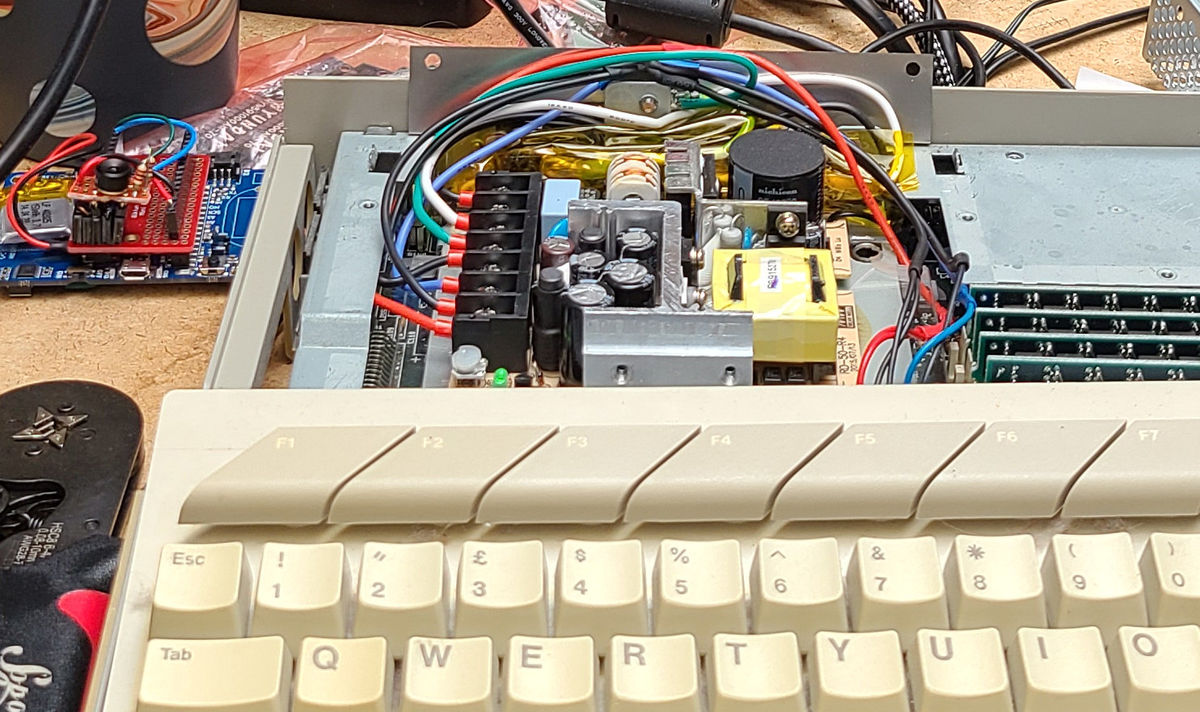
<p>For the first STE upgrade, I went with the <a href="https://www.digikey.com/en/products/detail/mean-well-usa-inc/RD-50A/7705984">Mean Well RD-50A</a>, which is a popular choice for older computers and video game systems. It’s pictured above at the top of this post, and it will operate on most, if not all, worldwide mains voltages.</p>

<p>This installation was not an experience I’d care to repeat. The RD-50A does not fit well in the Atari ST. It is slightly too big, and I had to bend the leads on the switch and AC plug socket to give myself enough clearance to fit it in. It took a tremendous amount of time to get to fit, but I was pleased with the result, especially because this gave me enough space to replace the power supply RF shielding that came with the STE.</p>

<p>I found <a href="https://youtu.be/7F0Y4kwT5es?t=1905">this video from Jan Beta</a> to be immensely helpful in preparing me for this power supply upgrade. I watched the power supply section several times before and during the process.</p>

<p>I crimped ferrules onto the wire leads before I screwed them into the terminal block. I’ve had too many bad experiences with tinned wires in screw terminals, including a melted terminal block on a 3D printer that turned into an expensive controller board replacement. I used <a href="https://amzn.to/3NfXthA">this ferrule crimp kit + tool</a> from Amazon. <a href="https://hackaday.com/2018/04/12/to-ferrule-or-not-to-ferrule/">This Hackaday article</a> explains the importance of ferrules.</p>

<h2 id="atari-520-ste-2">Atari 520 STE #2</h2>

<p><img src="/assets/atarist/power%20supply%20-%20520%20STE%2002.jpg" alt="Atari STE with 60W power supply" /></p>

<p>When I got around to upgrading the second STE, I looked into alternatives to the RD-50A, and found this <a href="https://atariage.com/forums/topic/288709-adopting-two-520-ste-machines/?do=findComment&amp;comment=4233218">AtariAge thread from 6BQ5</a> that recommended a different Mean Well power supply, the <a href="https://www.digikey.com/en/products/detail/mean-well-usa-inc/RPD-60A/7706011">RPA-60A</a>. It’s much smaller and far easier to install. Despite the 60 in the model number, and the 60W in the description, digging into the <a href="https://www.meanwellusa.com/upload/pdf/RPD-60/RPD-60-spec.pdf">datasheet</a> shows that it’s rated for 49W (vs 54W for the 50A), and can deliver 5A on the 5V rail and 2A on the 12V rail, which is plenty for this machine.</p>

<p>By using the <a href="https://www.digikey.com/en/products/detail/te-connectivity-amp-connectors/2154828-2/3929751">cable assemblies</a> recommended in 6BQ5’s post, the installation ended up being quite easy. The smaller size of the power supply made it much easier to install than the RD-50A. It didn’t align well to the screw holes in the power supply bracket, so I bolted a wire from one of the grounding screw holes to a screw hole in the bracket. This ensures proper grounding to the case. That connection is visible in the photo above.</p>

<h2 id="falcon-030">Falcon 030</h2>

<p><img src="/assets/atarist/power%20supply%20-%20falcon%20030.jpg" alt="Atari Falcon with CenturionTech power supply" /></p>

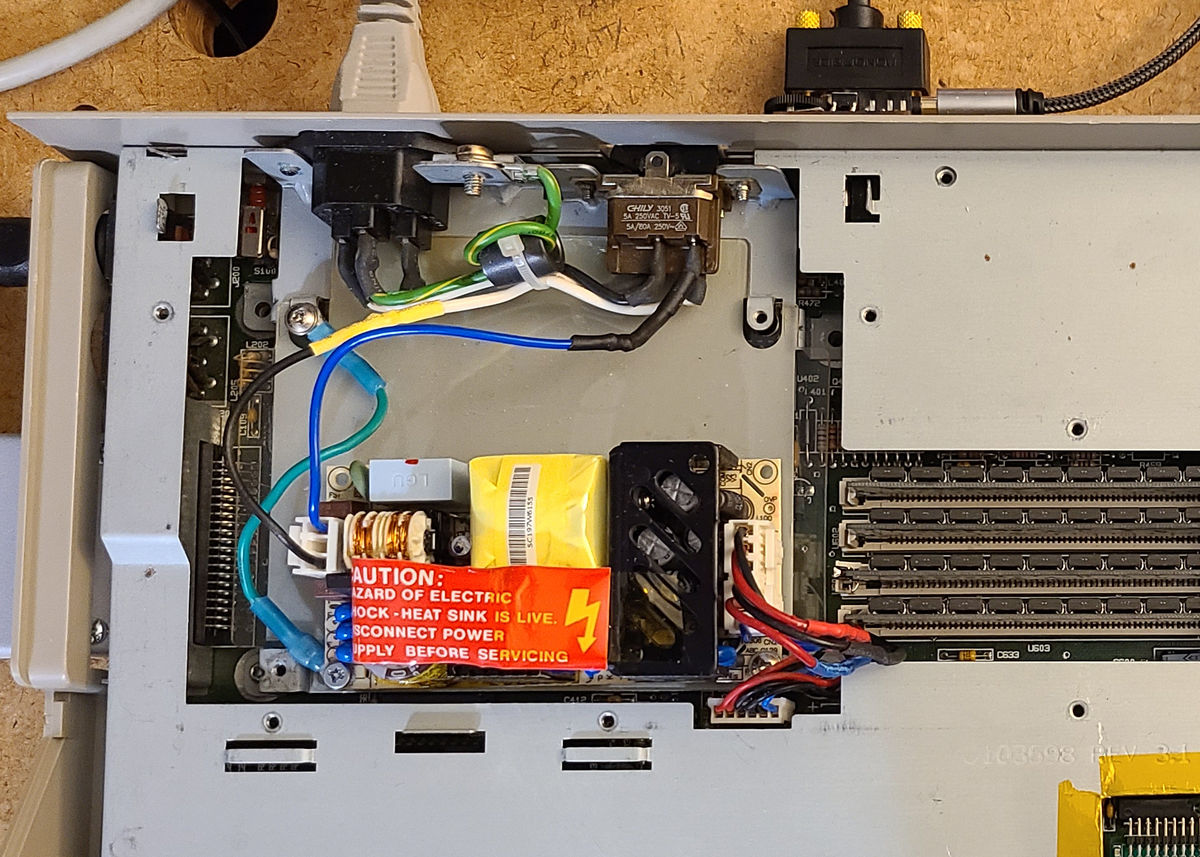
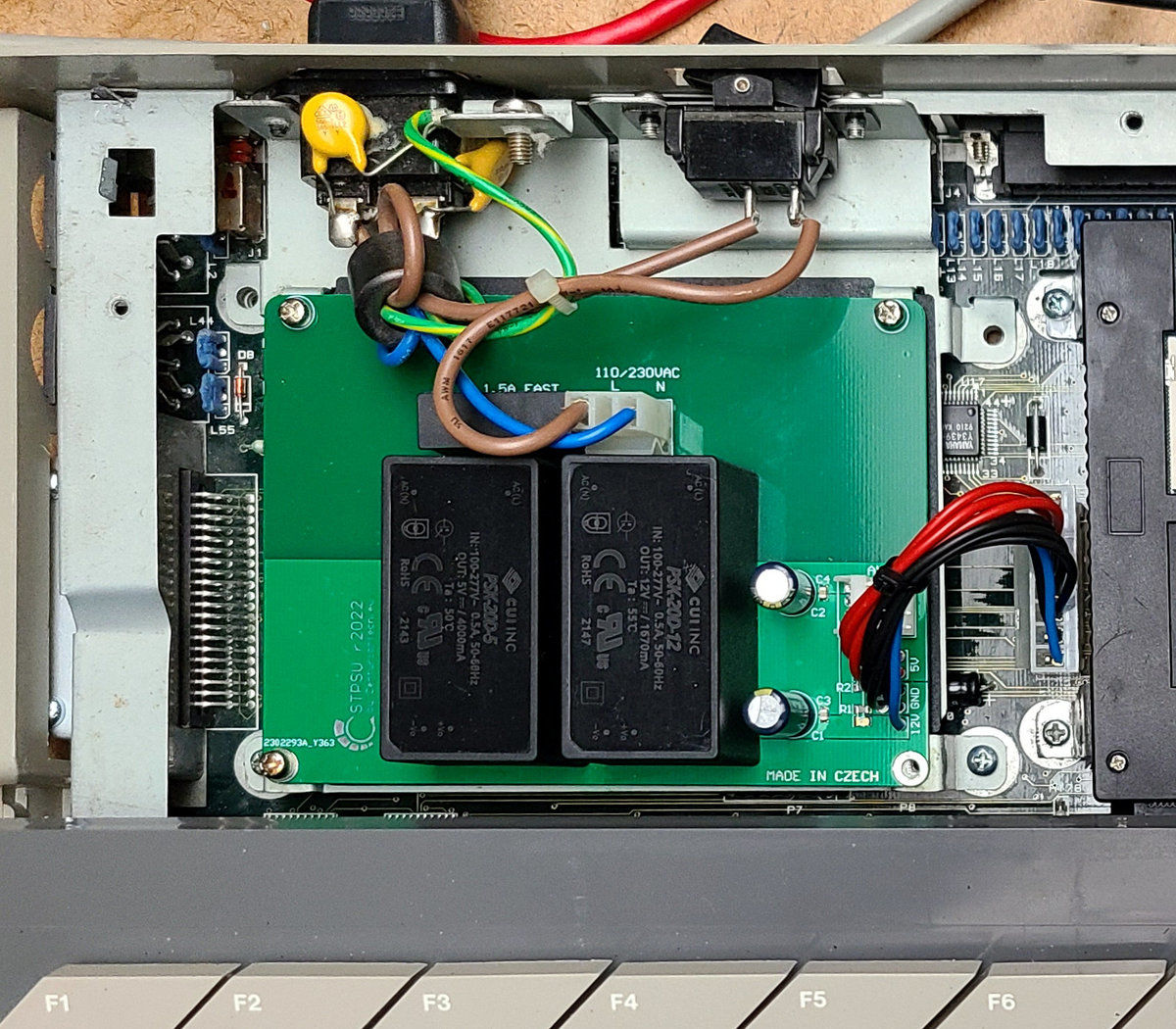
<p>My Falcon 030 is a US model, so technically, I didn’t really need to upgrade the power supply. However, the original power supply runs hot, and I really wanted to cool things down so I could feel more comfortable about disconnecting the internal fan, which is really noisy. So, I splurged on the <a href="https://centuriontech.eu/product/stpsu-f030/">STPSU r2022 power supply unit for Atari Falcon030 from Centurion Technologies</a>. Even though it was listed as on backorder, it took only a few weeks to arrive.</p>

<p>This was by far the easiest upgrade because it is a plug and play replacement. No soldering needed at all. My only gripe was that I wasn’t able to get both grounding screws attached (see the lower right screw hole in the photo). It’s probably because my power supply bracket is bent or something. However, the grounding is quite secure, so I’m not too worried. Though I’ll probably open it up some day and sort out the misalignment because it will always nag at me.</p>]]></content><author><name>Brian Jepson</name></author><category term="atarist" /><category term="power-supply" /><category term="atari-st" /><category term="power-supply" /><category term="atari-falcon-030" /><summary type="html"><![CDATA[I'm working on three 16/32-bit Atari ST computers, and each of them needed a new power supply]]></summary><media:thumbnail xmlns:media="http://search.yahoo.com/mrss/" url="https://jepstone.net/assets/atarist/power%20supply%20-%20520%20STE%2001.jpg" /><media:content medium="image" url="https://jepstone.net/assets/atarist/power%20supply%20-%20520%20STE%2001.jpg" xmlns:media="http://search.yahoo.com/mrss/" /></entry></feed>